
To factory reset a Shark Robot Vacuum, open the Shark Clean app, go to Settings, and select Factory Reset. The Shark robot will restore itself to its factory settings.
Introducing a Shark Robot Vacuum into your home can make the task of keeping your floors clean a breeze. However, there may come a time when you need to perform a factory reset on the device. Whether you’re experiencing connectivity issues or simply want to start fresh, learning how to factory reset a Shark Robot Vacuum is essential.
We will guide you through the steps to successfully reset your Shark Robot Vacuum and restore it to its factory settings. By following these instructions, you can ensure that your Shark Robot Vacuum is functioning at its best. So, let’s dive in and explore the process of factory resetting your Shark Robot Vacuum.
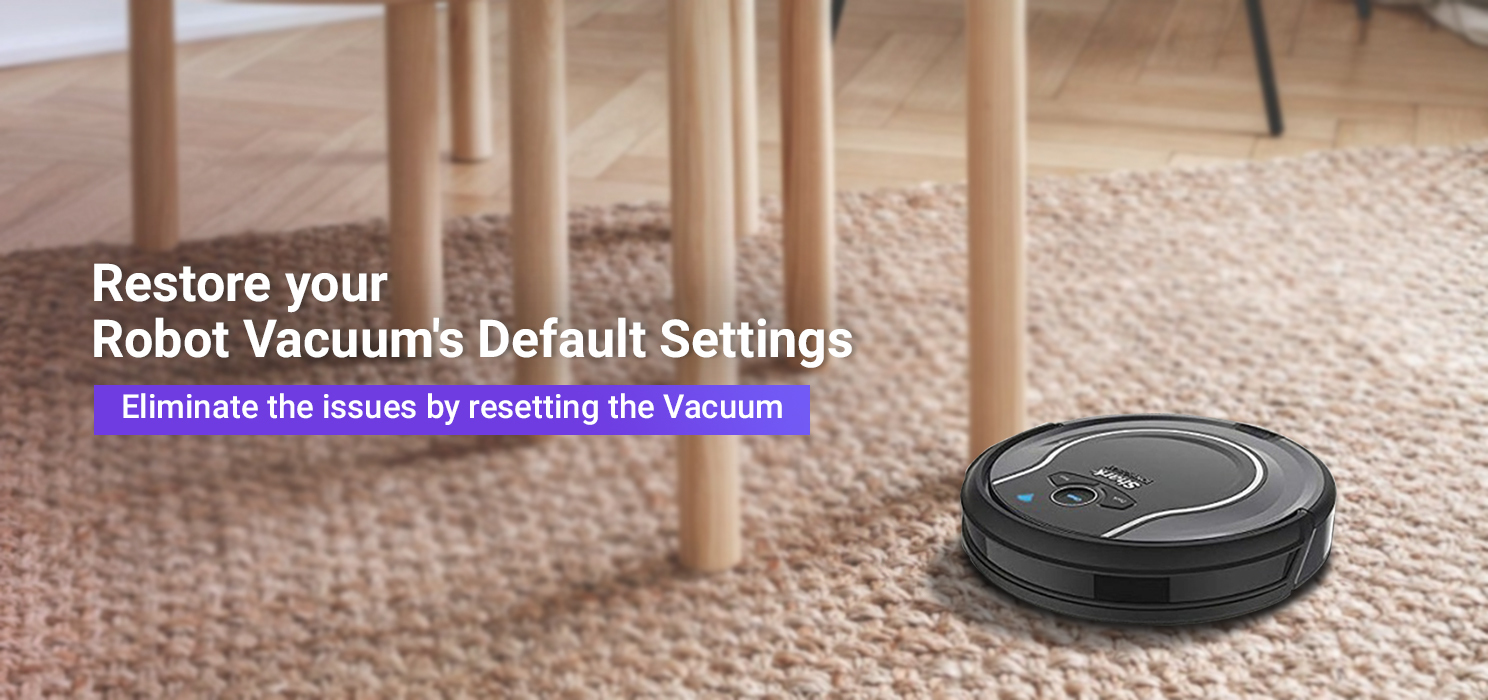
Methods To Factory Reset Shark Robot Vacuum
When it comes to maintaining your Shark robot vacuum, knowing the methods to perform a factory reset is essential in resolving various issues. Whether you are experiencing connectivity problems, software glitches, or performance issues, understanding how to factory reset your Shark robot vacuum can help restore it to its original settings and potentially resolve any persistent issues.
Using The Shark Clean App
If you are encountering performance issues with your Shark robot vacuum, utilizing the Shark Clean app to initiate a factory reset can often resolve these issues.
Performing A Hard Reset
In some cases, the standard factory reset method may not be effective in resolving persistent issues with your Shark robot vacuum. Performing a hard reset is a more comprehensive method to restore the vacuum to its original settings.
Following Manufacturer’s Instructions
Always refer to the manufacturer’s instructions for specific guidance on performing a factory reset for your Shark robot vacuum. Following the recommended steps ensures that the reset process is performed accurately and effectively.
Troubleshooting Common Issues
To factory reset your Shark robot vacuum, open the Shark Clean app, go to Settings, and select the Factory Reset option. This will restore your vacuum to its original factory settings.
Connection Issues
If you’re experiencing connection issues with your Shark Robot Vacuum, there are a few steps you can take to resolve the problem. Firstly, check that the Wi-Fi signal in your home is strong and stable. Weak signals can cause interruptions in the connection between your vacuum and the app. Move your router closer to the vacuum or consider getting a Wi-Fi extender if needed. Additionally, make sure that your vacuum is within range of your router and that there are no physical barriers blocking the signal.
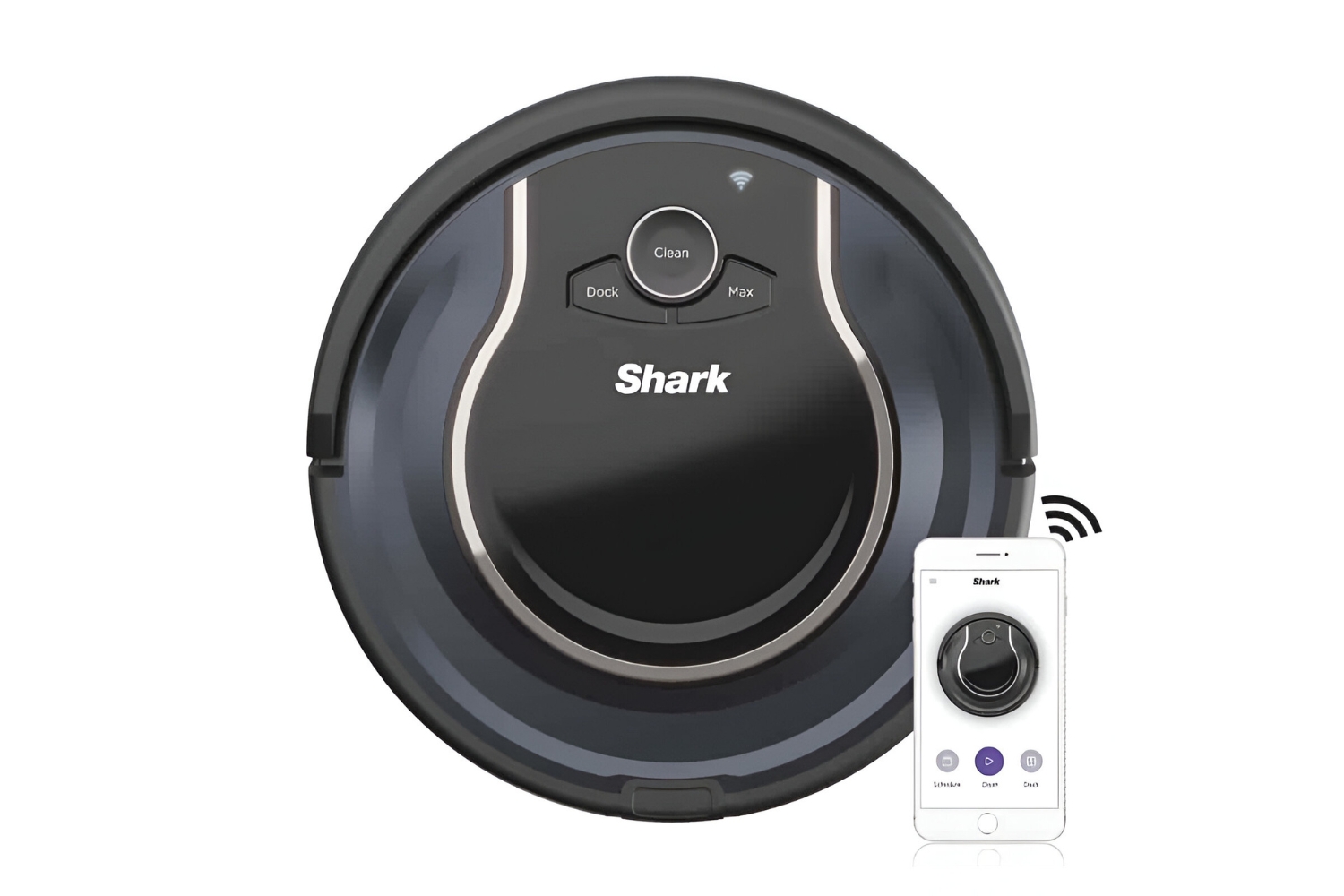
If you’re still having trouble connecting, try resetting both your router and your vacuum. To reset your Shark Robot Vacuum, open the Shark Clean app on your device. Navigate to Settings and then look for the Robot tab. Tap on the Factory Reset option and confirm the reset. After the reset, follow the setup instructions to reconnect your vacuum to the app and establish a new connection.
Functionality Issues
If your Shark Robot Vacuum is experiencing functionality issues, start by checking the brushroll and sensors for any obstructions or blockages. Sometimes, dirt, hair, or debris can get caught in the brushroll, preventing it from spinning properly. Clear any obstructions and ensure that the sensors are clean and unobstructed as well.
Next, check the battery level of your vacuum. If the battery is low, your vacuum may not be able to perform at its full potential. Charge the battery fully and try again. If the issue persists, you may need to replace the battery.
Wi-fi Connectivity Issues
If you’re having trouble with the Wi-Fi connectivity of your Shark Robot Vacuum, there are a few troubleshooting steps you can take. Firstly, ensure that your Wi-Fi network is functioning properly by connecting other devices to it. If other devices can connect without any issues, try restarting your router and vacuum.
If the problem persists, try resetting your Wi-Fi network. This can usually be done through your router settings. Once your network is reset, follow the setup instructions in the Shark Clean app to reconnect your vacuum to Wi-Fi.
In addition, check for any firmware updates for your vacuum. Sometimes, outdated firmware can cause connectivity problems. Check the Shark website or app for any available updates and install them if necessary.
Tips For Optimal Performance
Your Shark robot vacuum is designed to provide efficient cleaning and convenience. To ensure optimal performance, it is essential to follow these tips:
Regular Maintenance
Maintaining your Shark robot vacuum is crucial for its longevity and efficiency. Here are the maintenance tasks you should regularly perform:
- Clean the dustbin after each use to prevent it from becoming clogged or overflowing.
- Remove any tangled hair or debris from the brush roll to avoid any obstructions or damage.
- Inspect and clean the sensors to ensure they can detect obstacles and navigate efficiently.
- Check the filter regularly and replace it when necessary to maintain optimal suction power.
Keeping The Software Updated
Keeping your Shark robot vacuum’s software updated is crucial for its performance and functionality. Follow these steps to ensure your vacuum’s software is up to date:
- Open the Shark Clean app on your device.
- Navigate to Settings and look for the Robot tab.
- Tap on Software Updates and check for any available updates.
- If updates are available, proceed with the installation to enjoy the latest features and bug fixes.
Using Compatible Accessories
Using compatible accessories with your Shark robot vacuum is important to maintain its optimal performance. Here’s why:
| Accessory | Importance |
|---|---|
| Brush Rolls | Using the appropriate brush roll ensures effective cleaning on different surfaces. |
| Filters | Using compatible filters maintains optimal suction and prevents debris from escaping into the air. |
| Charging Dock | Using the recommended charging dock ensures proper charging and easy access for your vacuum. |
| Batteries | Using genuine batteries guarantees long-lasting power and compatibility with your Shark robot vacuum. |
By following these tips, you can optimize the performance of your Shark robot vacuum, ensuring it delivers efficient and thorough cleaning throughout your home.
Additional Resources
To factory reset your Shark Robot Vacuum, open the Shark Clean app and go to Settings. Then, select the Factory Reset option to restore the vacuum to its original settings.
Addtional Resources Videos For visual learners, there are numerous videos available online that demonstrate the process of factory resetting the Shark Robot Vacuum. Websites such as YouTube offer step-by-step tutorials and troubleshooting guides to make the process easier. Reddit Discussions Engaging with Reddit communities can provide valuable insights and first-hand experiences from users who have factory reset their Shark Robot Vacuum. Joining discussions on Reddit can offer helpful tips and solutions to common issues related to resetting the vacuum. Perspectives from Users Gaining perspectives from users who have encountered similar situations can provide valuable information. User forums, customer reviews, and social media platforms offer a wealth of experiences and insights on factory resetting the Shark Robot Vacuum. Images Visual representations of the reset process through images can help users understand the steps involved. Websites and forums often include images of the Shark Robot Vacuum, its components, and the reset process, aiding users in completing the task successfully. Shopping Options Exploring various shopping options for maintenance tools or replacement parts for the Shark Robot Vacuum can be beneficial. Online marketplaces and official websites may offer the necessary components required for the vacuum’s reset and maintenance. News Articles Staying updated with news articles related to robotic vacuums can provide valuable information on troubleshooting and maintenance, including factory resetting. Reputable sources offer insights into the latest developments and innovations in the industry. Books and Guides Books and guides dedicated to robotic vacuums and home appliances can serve as comprehensive resources for troubleshooting and maintenance. They provide in-depth knowledge and step-by-step instructions for factory resetting the Shark Robot Vacuum. Maps and Locations Understanding the availability of service centers and retail locations for Shark Robot Vacuums in specific regions can be vital. Maps and location-based services help users locate authorized service providers and retail outlets for assistance. Flights to Austin, Texas For users seeking assistance from authorized service centers or retail outlets, information on flights to Austin, Texas, the headquarters of Shark Robot Vacuum, can be valuable. Access to the manufacturer’s facilities can provide professional support for troubleshooting and maintenance. Official Shark Robot Vacuum Website The official website of Shark Robot Vacuum is an essential resource for accessing user manuals, troubleshooting guides, and customer support. It offers direct access to authoritative information and resources for factory resetting and maintaining the Shark Robot Vacuum.
Frequently Asked Questions For How To Factory Reset Shark Robot Vacuum
How Do I Reset My Shark Robot Vacuum?
To reset your Shark robot vacuum, open the SharkClean app, go to Settings, and tap Factory Reset. Confirm the reset to restore to factory settings.
How Do You Remap A Shark Robot Vacuum?
To remap a Shark robot vacuum, open the Shark Clean app, go to Settings, and select Factory Reset option. Confirm the reset and the vacuum will restore itself to its factory settings.
How Do You Reconnect A Disconnected Shark Robot?
To reconnect a disconnected Shark robot, open the Shark Clean app and go to Settings. Look for the Robot tab and tap on the Factory Reset option. Confirm the reset and wait for a few minutes for the robot to reconnect.
How Do I Get My Shark Robot To Work?
To get your Shark robot to work, open the SharkClean app, go to settings, and select Factory Reset. Confirm to reset.
How Do I Factory Reset My Shark Robot Vacuum?
To factory reset your Shark robot vacuum, open the Shark Clean app, go to Settings, and select Factory Reset. Your vacuum will restore itself to its original factory settings.
Conclusion
In just a few easy steps, you can effectively factory reset your Shark robot vacuum. The process ensures that your vacuum is restored to its original settings, ready to operate at its best. With these straightforward instructions, you can confidently maintain the performance of your Shark robot vacuum with ease.