
To reconnect a Shark vacuum to WiFi, press and hold the WiFi button until it blinks. Then, follow the instructions on the SharkClean app to complete the process.
In today’s hyper-connected world, our household appliances are also joining the WiFi bandwagon. Shark vacuums are no exception, as many models now come equipped with WiFi connectivity features. By integrating your Shark vacuum with your home’s WiFi network, you can remotely control and monitor the device, schedule cleanings, and receive maintenance alerts.
If you’re here to learn how to reconnect your Shark vacuum to WiFi, you’ve come to the right place. In this guide, we’ll explore the step-by-step process to get your Shark vacuum seamlessly linked to your WiFi network. So, let’s delve into the simple and easy steps to ensure your Shark vacuum re-establishes its connection to WiFi, empowering you with convenient remote access and control.
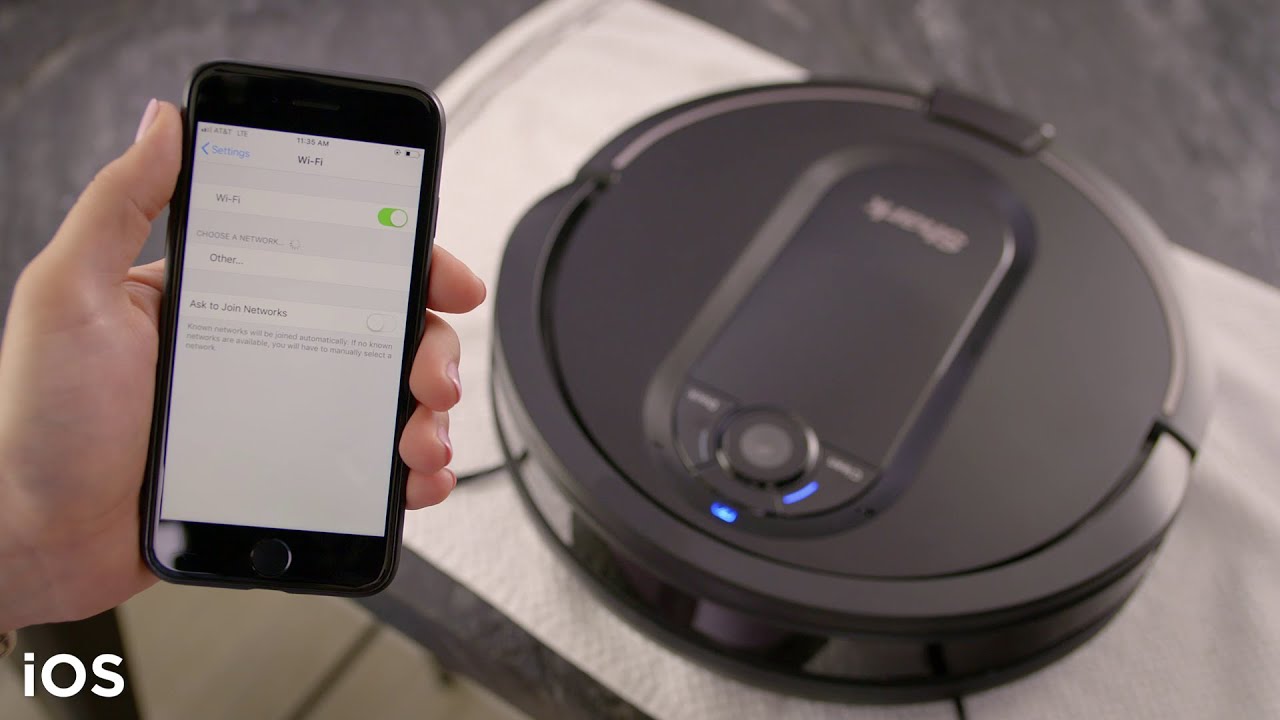
Understanding Shark Vacuum Connectivity
Shark vacuum cleaners are at the forefront of innovation, offering advanced features that make household cleaning more convenient. One of these features is the ability to connect Shark vacuums to wifi, which opens up a range of benefits for users. In this article, we’ll delve into the reasons why Shark vacuum needs wifi and explore the advantages of connecting your Shark vacuum to your home network.
Why Shark Vacuum Needs Wifi
Shark vacuums require a wifi connection to enable features such as remote control through the mobile app, voice command compatibility, firmware updates, and access to additional cleaning modes. By connecting your Shark vacuum to wifi, you can enjoy enhanced control and functionality, ultimately making the cleaning process more seamless and efficient.
Benefits Of Connecting Shark Vacuum To Wifi
When you connect your Shark vacuum to wifi, you gain access to a host of benefits that elevate the cleaning experience. These include:
- Remote control capabilities via the mobile app
- Voice command compatibility for hands-free operation
- Automatic firmware updates for improved performance
- Access to additional cleaning modes for customized cleaning
Preparing For Reconnection
Before reconnecting your Shark vacuum to Wi-Fi, there are a few essential steps to take in ensuring a smooth and successful process. These include checking your Wi-Fi signal strength and ensuring proper power supply to your device. Let’s dive in and explore these steps in more detail.
Checking Wifi Signal Strength
When reconnecting your Shark vacuum to Wi-Fi, it’s crucial to ensure that your Wi-Fi signal strength is strong enough for a stable connection. To check the signal strength:
- Ensure that your Wi-Fi router is positioned within proximity to the vacuum.
- Use a Wi-Fi signal strength app or the signal strength feature on your smartphone to assess the signal’s quality.
Don’t proceed with the reconnection process if the Wi-Fi signal strength is weak or unstable to prevent disconnections and interruptions.
Ensuring Proper Power Supply
Another critical aspect to consider before reconnecting your Shark vacuum to Wi-Fi is ensuring that it has a stable power supply. Here’s how to ensure proper power supply:
- Check that the vacuum’s battery is fully charged or that it’s connected to a power source.
- Inspect the power cord for any damages or wear and tear. Replace it if necessary to prevent power interruptions during the reconnection process.
By ensuring strong Wi-Fi signal strength and proper power supply, you’ll set the stage for a seamless reconnection of your Shark vacuum to Wi-Fi, allowing you to enjoy its full range of smart features and capabilities.
Troubleshooting Steps
If you’re having trouble reconnecting your Shark Vacuum to Wi-Fi, don’t worry! In this section, we will guide you through a step-by-step troubleshooting process to help resolve the issue. Following these steps will enable you to enjoy the convenience of controlling your Shark Vacuum from your smartphone or smart home devices once again.
Step 1: Restart Your Shark Vacuum
To begin, let’s start with a simple but effective solution. Restarting your Shark Vacuum can often resolve connectivity problems. Follow these steps:
- Turn off the Shark Vacuum by pressing the power button on the device.
- Unplug the power cord from the electrical outlet and wait for 30 seconds.
- Plug the power cord back in and turn the vacuum back on.
Step 2: Reset Shark Vacuum’s Network Settings
If restarting the vacuum didn’t solve the issue, you can try resetting the network settings. Here’s how:
- Locate the Wi-Fi button on your Shark Vacuum. It is usually located on the handle or the main unit.
- Press and hold the Wi-Fi button for about 10 seconds until the Wi-Fi light starts blinking.
- Wait for the Wi-Fi light to stop blinking and remain solid, indicating that the network settings have been reset.
Step 3: Check Router Settings
Next, let’s ensure that your router settings are compatible with your Shark Vacuum’s Wi-Fi connection. Follow these steps:
- Open a web browser on your computer or mobile device.
- Type your router’s IP address into the address bar. You can usually find this information in the router’s manual or on the manufacturer’s website.
- Enter your router’s login credentials to access the settings page.
- Check if the router’s Wi-Fi settings are configured to allow connections from your Shark Vacuum. Make sure any MAC address filtering or security settings are properly set.
- If needed, consult your router’s manual or contact your internet service provider for further assistance.
Step 4: Ensure Correct Password
One common mistake is entering an incorrect Wi-Fi password during the setup process. Make sure you have the correct password by following these steps:
- Access the Wi-Fi settings on your smartphone, tablet, or computer.
- Find the network name (SSID) that your Shark Vacuum should be connected to.
- Click or tap on the network name and enter the password. Double-check for any typos or mistakes.
- Click or tap “Connect” to attempt to establish a connection with your Shark Vacuum.
Step 5: Update Shark Vacuum Firmware
Finally, it’s essential to ensure that your Shark Vacuum has the latest firmware installed. Manufacturers often release updates to address bugs and improve performance. Here’s how to check for updates:
- Open the Shark Clean app on your smartphone or tablet.
- Navigate to the settings menu and look for the firmware update option.
- If an update is available, follow the on-screen instructions to download and install it.
- After the update is complete, restart your Shark Vacuum and try reconnecting to Wi-Fi.
By following these troubleshooting steps, you should be able to reconnect your Shark Vacuum to Wi-Fi successfully. Enjoy the convenience and control that a connected vacuum provides!
Alternative Connection Methods
Easily reconnect your Shark Vacuum to your wifi with alternative connection methods. Follow simple steps to troubleshoot and seamlessly establish a new connection without hassle. Keep your vacuum connected for real-time updates and enhanced functionality.
Alternative Connection Methods When it comes to reconnecting your Shark vacuum to Wi-Fi, there are more than one way to get the job done. In addition to the standard connection process, Shark offers some alternative methods that you might find useful. In this article, we’ll explore two alternative connection methods that can help you get your Shark vacuum back online and ready to use: Using a Shark Vacuum App and Using a Wireless Range Extender. ## Using a Shark Vacuum App If you’re looking for a simple and convenient way to reconnect your Shark vacuum to Wi-Fi, using the Shark Vacuum App is an excellent solution. This user-friendly app allows you to control your vacuum remotely, access maintenance reminders, and even troubleshoot any potential issues. The steps to reconnecting your vacuum through this app are straightforward. To get started, follow these simple instructions: 1. Download and install the Shark Vacuum App from the App Store or Google Play Store. 2. Open the app and create an account if you don’t already have one. 3. Ensure your Shark vacuum is turned on and in the Wi-Fi setup mode. 4. Follow the on-screen instructions in the app to connect your vacuum to your home Wi-Fi network. 5. Once connected, you can control your vacuum and access its features through the app. Using the Shark Vacuum App is a convenient option, as it allows you to monitor and control your vacuum from anywhere in your home. It’s especially handy if you have a larger home or multiple floors, as you can easily schedule cleanings or check on the status of your vacuum without having to be in the same room. ## Using a Wireless Range Extender If you’re facing connectivity issues between your Shark vacuum and your home Wi-Fi network, using a wireless range extender may improve the signal strength and allow for a more stable connection. A range extender is a device that amplifies your existing Wi-Fi signal and extends its range, covering dead zones and ensuring a smoother connection throughout your home. Follow these steps to reconnect your Shark vacuum using a wireless range extender: 1. Purchase and set up a wireless range extender compatible with your home Wi-Fi network. 2. Place the range extender in a central location between your Wi-Fi router and the area where you’ll be using your Shark vacuum the most. 3. Connect the range extender to your Wi-Fi network following the manufacturer’s instructions. 4. Once the range extender is successfully connected, link your Shark vacuum to the extended Wi-Fi network using the standard connection process. By using a wireless range extender, you can ensure that your Shark vacuum has a strong and stable Wi-Fi connection, even in areas where the signal may have been previously weak. This will help optimize performance and enable you to reap the full benefits of your Shark vacuum. Remember, whether you choose to use the Shark Vacuum App or a wireless range extender, these alternative connection methods provide convenience and flexibility, empowering you to effortlessly reconnect your Shark vacuum to Wi-Fi. Choose the method that suits your preferences and needs, and start enjoying the convenience of controlling your vacuum wirelessly.
Common Error Messages
Encountering common error messages when reconnecting your Shark vacuum to Wi-Fi can be frustrating. Resolve issues by checking the Wi-Fi connection, ensuring the vacuum is within range, and restarting the device. It’s essential to follow the troubleshooting steps provided in the user manual for a smooth reconnection process.
Error: Unable To Connect To Wifi
One of the most common error messages you may encounter when trying to reconnect your Shark vacuum to wifi is the “Error: Unable to Connect to Wifi” message. This message indicates that there is a difficulty in establishing a connection between your vacuum and your wifi network. Here are a few possible reasons for this error:
- Poor signal: If your wifi signal is weak, your Shark vacuum may have trouble connecting. Ensure that your vacuum is within range of your wifi router and try moving it closer if necessary.
- Incorrect password: Double-check the wifi password you entered. Make sure there are no typos or mistakes in uppercase or lowercase letters. It’s a good idea to confirm the password by connecting another device to the same wifi network.
- Network compatibility: Some Shark vacuum models may only be compatible with specific types of wifi networks. Check the specifications and user manual of your vacuum to ensure compatibility with your wifi network.
- Network congestion: If multiple devices are connected to your wifi network and using it heavily, it might cause connectivity issues. Consider disconnecting some devices or optimizing your network for a smoother connection.
- Router settings: Certain router settings like MAC filtering or firewall restrictions may prevent your Shark vacuum from connecting to wifi. Check your router’s settings and make any necessary adjustments.
If you encounter the “Error: Unable to Connect to Wifi” message, troubleshooting these possible causes can help you resolve the issue and reconnect your Shark vacuum successfully.
Error: Weak Signal Detected
Another error message you might come across during the process of reconnecting your Shark vacuum to wifi is the “Error: Weak Signal Detected” message. This error indicates that the wifi signal received by your vacuum is not strong enough for a stable connection. Here are some steps you can take to address this issue:
- Relocate your vacuum: Move your Shark vacuum closer to your wifi router to improve the signal strength. Ensure there are no physical obstructions, such as walls or furniture, blocking the signal between the vacuum and router.
- Reposition the router: If moving the vacuum is not possible or does not improve the signal, consider repositioning your wifi router to a more centralized location within your home. This can help distribute the signal more evenly.
- Upgrade your router: If your current router is old or does not support the latest wifi standards, it may struggle to provide a strong signal. Consider upgrading to a newer router with better range and performance.
- Use wifi range extenders: If your wifi signal is weak in certain areas of your home, you can use wifi range extenders to amplify the signal and improve coverage. Place these extenders strategically throughout your home to boost the signal near your vacuum.
- Reduce interference: Other electronic devices, such as microwave ovens or cordless phones, can interfere with your wifi signal. Keep your vacuum away from such devices and turn them off if possible when attempting to reconnect.
By following these steps and addressing the “Error: Weak Signal Detected” message, you can increase the chances of a successful wifi connection for your Shark vacuum.
Additional Tips And Considerations
To reconnect your Shark Vacuum to Wi-Fi, follow these additional tips and considerations for a seamless experience.
When it comes to reconnecting your Shark vacuum to wifi, there are a few additional tips and considerations that can help optimize the process and ensure a successful connection. In this section, we will explore the importance of keeping firmware up to date, optimizing wifi signal strength, and how to contact Shark customer support if needed.
Keeping Firmware Up To Date
One of the key factors in maintaining a seamless wifi connection with your Shark vacuum is by keeping the firmware up to date. Firmware updates often include bug fixes, performance enhancements, and improved compatibility with wifi networks. To ensure that you have the latest firmware installed on your Shark vacuum, follow these steps:
- Check for Updates: Visit the Shark website and navigate to the support section. Look for the firmware update page specific to your model of the Shark vacuum. Here you will find the latest firmware available for download.
- Download the Firmware: Click on the download link provided and save the firmware file to your computer or mobile device.
- Transfer the Firmware: Connect your Shark vacuum to your computer or mobile device using a USB cable or transfer the firmware file to a compatible USB drive.
- Update the Firmware: On your Shark vacuum, navigate to the System Settings menu and select the option to update firmware. Follow the on-screen instructions to complete the update process.
It’s important to note that during the firmware update, your Shark vacuum should stay connected to a stable and reliable wifi network to avoid interruptions.
Optimizing Wifi Signal Strength
Wifi signal strength plays a vital role when connecting your Shark vacuum to wifi. Weak or intermittent wifi signals can hinder the connection process and may result in frequent disconnections. To optimize your wifi signal strength, consider the following:
- Router Placement: Position your wifi router in a centralized location within your home to ensure a strong signal throughout. Avoid placing it near walls or in corners to minimize obstructions.
- Reduce Interference: Keep your wifi router away from other electronic devices that emit wireless signals, such as cordless phones, baby monitors, and microwave ovens. These devices can interfere with your wifi signal and disrupt connectivity.
- Use Wifi Extenders: If you have larger living spaces with multiple floors or areas with weak wifi signal, consider using wifi extenders to amplify the signal and extend your network coverage.
By following these optimization techniques, you can ensure a stronger and more stable wifi signal for your Shark vacuum, resulting in a more reliable and uninterrupted connection.
Contacting Shark Customer Support
If you have followed all the steps outlined above and are still experiencing difficulties reconnecting your Shark vacuum to wifi, contacting Shark customer support may be the best course of action. Their team of technical experts can provide further assistance and guide you through the troubleshooting process. To get in touch with Shark customer support, follow these steps:
- Visit the Shark Website: Go to the Shark website and navigate to the support section.
- Find Contact Information: Look for the “Contact Us” or “Support” page, where you will find the contact information for Shark customer support.
- Choose Your Preferred Method: Contact Shark customer support via phone, email, or live chat, depending on your preference and availability.
- Provide Relevant Information: When reaching out to Shark customer support, be prepared to provide details about your Shark vacuum model, the issues you are facing with wifi connectivity, and any troubleshooting steps you have already taken.
By reaching out to Shark customer support, you can rely on their expertise to help resolve any remaining issues and ensure a smooth and successful reconnection of your Shark vacuum to wifi.

Frequently Asked Questions Of How To Reconnect Shark Vacuum To Wifi
How Do I Reconnect My Shark Vacuum To Wifi?
To reconnect your Shark vacuum to Wifi, you need to follow a few simple steps. First, ensure that your vacuum is powered on and nearby the Wifi router. Then, open the Shark Clean app on your smartphone and go to the settings menu.
Select the option to reconnect to Wifi and follow the prompts to enter your network information. Once completed, your Shark vacuum will be successfully reconnected to Wifi.
Why Won’t My Shark Vacuum Connect To Wifi?
If your Shark vacuum won’t connect to Wifi, there could be a few reasons. Firstly, check if the Wifi signal is strong in the area where you are trying to connect the vacuum. Additionally, ensure that you have entered the correct Wifi network name and password.
Restarting both your vacuum and Wifi router may also help resolve the issue. If the problem persists, consult the troubleshooting section in the user manual or contact Shark customer support for further assistance.
Can I Connect My Shark Vacuum To A Different Wifi Network?
Yes, you can connect your Shark vacuum to a different Wifi network. Start by resetting the Wifi settings on your vacuum. Then, follow the initial setup process to connect to the new Wifi network. Remember to enter the correct network name and password when prompted.
This allows you to switch the Shark vacuum between different Wifi networks as needed.
What Should I Do If I Forget The Wifi Network Password For My Shark Vacuum?
If you forget the Wifi network password for your Shark vacuum, there are a few steps you can take. Firstly, check if the password is saved on any devices that were previously connected to the same network. If not, you may need to reset the Wifi settings on your vacuum and reconnect it to the network using the new password.
Refer to the user manual or contact Shark customer support for specific instructions on how to reset the Wifi settings.
Is It Necessary To Connect My Shark Vacuum To Wifi?
Connecting your Shark vacuum to Wifi is not necessary, but it offers additional functionality and convenience. By connecting to Wifi, you can use the Shark Clean app to control and monitor your vacuum remotely. This includes scheduling cleanings, checking cleaning history, and receiving notifications.
Wifi connectivity also allows for potential firmware updates and access to new features that enhance your vacuuming experience.
Conclusion
To wrap it up, reconnecting your Shark vacuum to WiFi is a simple and straightforward process. By following the steps mentioned above, you can enjoy the convenience and advanced functionality that WiFi connectivity offers. Remember to ensure a stable internet connection and refer to the user manual for any additional instructions.
Don’t let a disconnected Shark vacuum hold you back from a hassle-free cleaning experience. Get connected and experience the best performance your Shark vacuum has to offer.