
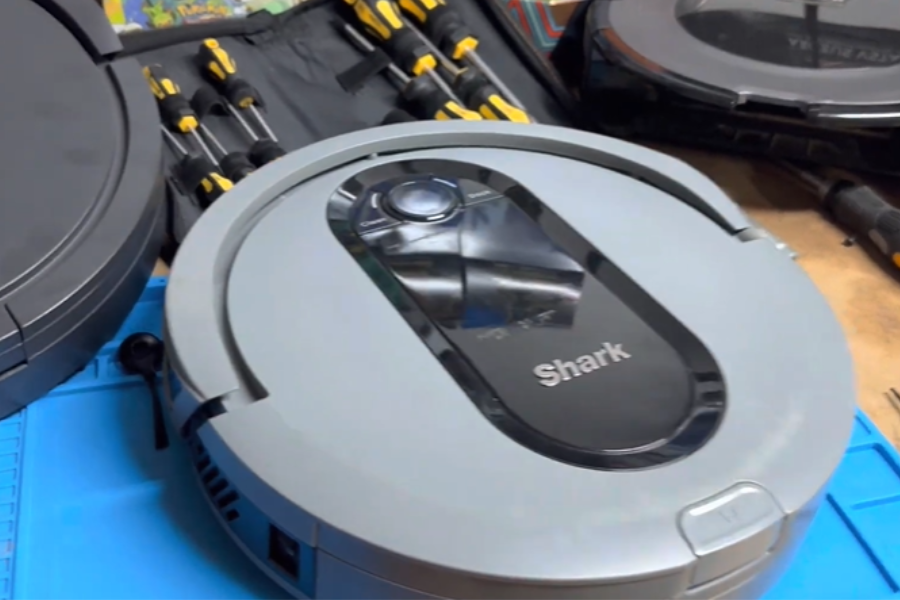
To reset your Shark robot vacuum, press and hold the power button for 10 seconds. Release the button once the light ring around the power button starts flashing.
Resetting your Shark robot vacuum is an essential step in troubleshooting issues or preparing the device for a new setup. It’s a simple process that can resolve many common problems, such as connectivity issues or unresponsive behavior. By performing a reset, you’re essentially giving your vacuum a fresh start, clearing any errors and refreshing its system.
This action can often restore the vacuum to its optimal functionality, ensuring your floors are cleaned efficiently. Remember, maintaining your Shark robot vacuum with regular resets can significantly enhance its performance and extend its lifespan. Whether you’re experiencing specific issues or just want to keep your vacuum running smoothly, a quick reset is a handy solution.

Introduction To Shark Robot Vacuum
Shark Robot Vacuums stand out in the cleaning world. These devices offer convenience and efficiency. They navigate through your home, sucking up dirt and debris. Over time, like all tech, they may need a reset. This can help maintain performance and fix issues.
Why Reset Your Vacuum?
- Restores original factory settings
- Improves functionality
- Clears minor glitches
- Prepares the device for a fresh start
Common Issues Fixed By Reset
Resetting can solve various problems. Below are some common issues that a reset can address:
| Issue | Solution |
|---|---|
| Unresponsive vacuum | Reset to regain control |
| Error messages | Clears errors for smooth operation |
| Charging problems | Ensures proper charging function |
| Navigation trouble | Recalibrates sensors and mapping |
By resetting your Shark Robot Vacuum, you can often quickly resolve these issues and get back to effortless cleaning.
Pre-reset Preparations
Before resetting your Shark Robot Vacuum, proper preparation is key. This ensures a smooth process. You will need tools and to follow safety steps. Let’s prepare for the reset.
Gathering Necessary Tools
To begin, collect the tools needed for resetting your Shark Robot Vacuum. These are:
- Instruction Manual: Guides through the reset process.
- Screwdriver: For any panel removal.
- Soft Cloth: To clean the vacuum before resetting.
Safety Measures
Focus on safety to protect yourself and your vacuum. Follow these steps:
- Turn Off: Ensure the vacuum is powered down.
- Unplug: Disconnect from any power source.
- Check: Look for any damaged parts.
Remember, safety first. Now your Shark Robot Vacuum is ready for a reset.
Identifying Your Shark Robot Model
Before resetting your Shark robot vacuum, identify its model. Different models may have unique reset steps. Knowing your model ensures a smooth reset process.
Model-specific Reset Instructions
To reset your Shark robot vacuum, follow the model-specific instructions. Each Shark model has a distinct reset method. Find the instructions for your exact model.
Where To Find Model Information
Model information is on the vacuum or in the user manual. Look under your Shark robot or check the manual cover. Use this information to access the right reset instructions.
- Check under the robot for a label.
- Look at the user manual cover.
Once you find the model number, use it to search for tailored reset steps. This ensures your Shark robot vacuum resets properly.
Step-by-step Reset Guide
Is your Shark Robot Vacuum acting up? A reset might fix it. This guide walks you through the process, making it quick and simple. Let’s get your vacuum back to its best!
Powering Off
First things first, turn off your vacuum. This ensures a safe reset. Press the power button. It’s usually on the top or side. Wait for the lights to go off. This means it’s off.
Locating The Reset Button
Next, find the reset button. It’s often small and hidden. Check the manual if you can’t find it. It’s usually on the robot’s bottom.
Executing The Reset
Ready to reset? Follow these steps:
- Press and hold the reset button. Use a paperclip or pin.
- Keep it held down for 10-15 seconds.
- Release the button. Wait for the robot to turn back on.
- Listen for a beep. This confirms a successful reset.
That’s it! Your Shark Robot Vacuum should now be reset and ready to go.
Post-reset Steps
After resetting your Shark Robot Vacuum, certain steps ensure it’s ready to clean again. Your vacuum needs to reconnect to Wi-Fi and undergo a test run. These steps verify the reset was successful. Follow the guidelines below to get your vacuum back in action.
Reconnecting To Wi-fi
Reconnect your Shark Robot Vacuum to your home network with these easy steps:
- Open the SharkClean app on your device.
- Select your vacuum from the device list.
- Tap on ‘Settings’ and find ‘Wi-Fi Setup’.
- Follow in-app instructions to complete the connection.
Ensure your Wi-Fi network is active and stable for a smooth setup.
Testing The Vacuum
Post-reset testing confirms your vacuum’s readiness. Perform a quick test by:
- Placing the vacuum on its charging dock.
- Using the app or pressing the ‘Clean’ button.
- Observing it navigate and pick up debris.
Listen for unusual noises and watch for error messages. No strange sounds and clear paths mean success.
Troubleshooting Reset Issues
Even the best tech can hiccup, and your Shark Robot Vacuum is no exception. A reset usually gets it back on track, but what if that fails? Don’t worry; let’s dive into some solutions.
When The Reset Doesn’t Work
Don’t panic if your Shark Robot Vacuum still acts up after a reset. Simple steps can often solve this. Check for updates first. Ensure your vacuum’s software is current. It can fix many issues.
- Inspect the wheels and brushes. Blockages can cause errors.
- Examine the charging base. It must be clean and connected.
- Review the vacuum’s manual. It might have specific instructions.
Still no luck? A factory reset could be your next step. Press and hold the right buttons as shown in the manual. This process varies for different models, so check your specific instructions.
Contacting Customer Support
If your vacuum refuses to reset, it’s time to reach out. Shark’s customer support is ready to help. They’ll guide you through more steps or arrange repairs.
- Visit the Shark website. Find the support or contact section.
- Prepare your vacuum’s model number and purchase info.
- Describe your issue clearly when you contact them.
Email, call, or use live chat for quick assistance. They’re knowledgeable and eager to solve your vacuum woes.
Maintenance Tips To Avoid Future Resets
Smart homes rely on devices like the Shark Robot Vacuum. Maintaining them helps prevent resets. Follow these tips to keep your vacuum running smoothly.
Regular Cleaning
Regular cleaning extends your vacuum’s life. Dirt accumulation can cause malfunctions. A clean device means fewer resets.
- Empty the dust bin after each use.
- Clean the filter weekly.
- Wipe sensors and charging contacts with a dry cloth.
- Check for and remove hair or fibers from the brushes.
Software Updates
Software updates fix bugs and improve performance. Ensure your Shark Robot Vacuum operates on the latest version. This can prevent unexpected resets.
- Connect your vacuum to WiFi.
- Use the SharkClean app to check for updates.
- Install updates promptly.
Advanced Reset Options
Shark robot vacuums simplify cleaning, but sometimes, they need a reset. Advanced reset options can solve issues that simple restarts can’t. Discover two main methods to reset your Shark robot vacuum to factory settings. This guide ensures your device runs smoothly again.
Factory Reset
Factory reset erases all data and returns the vacuum to original settings. This step is useful when persistent problems occur or before selling the device. Follow these steps:
- Turn off the vacuum.
- Press and hold the ‘Dock’ and ‘Clean’ buttons.
- Wait for the light ring to shut off and back on.
- Release the buttons; the vacuum is now reset.
Resetting Through The App
Resetting through the SharkClean app offers a convenient option. Use your smartphone to perform a reset with these steps:
- Open the SharkClean app.
- Tap on your vacuum in the device list.
- Select ‘Settings’.
- Choose ‘Factory Reset’ to erase all data.
- Confirm the reset.
Both methods ensure your Shark robot vacuum returns to peak performance.
Understanding Reset Signals
Before resetting your Shark Robot Vacuum, understand the reset signals. These signals help identify what your vacuum needs. Let’s dive into the main indicators: LED lights and beep codes.
Led Indicators
LED indicators show the vacuum’s status. They use colors and patterns. Here’s a quick guide:
- Solid Green: All is good. Your vacuum is ready to clean.
- Blinking Red: Something’s wrong. Maybe a jam or a drop.
- Solid Red: Serious issue. Check for blockages or battery problems.
These lights make troubleshooting easier. They tell you when a reset might help.
Beep Codes
Beep codes are sounds your vacuum makes. They tell you about problems. Here’s what they mean:
| Beep Pattern | Meaning |
|---|---|
| 1 Beep | Minor issue. Often a quick fix. |
| 2 Beeps | Check for jams in brushes or wheels. |
| 3 Beeps | Battery or charging error. Might need a reset. |
Beep codes guide you on when to reset. They help fix issues quickly.
Resetting Specific Features
Every Shark robot vacuum comes with nifty features. Sometimes, users may need to reset these functions. Let’s explore how to reset scheduling and smart home integration.
Scheduling
To reset your Shark robot’s cleaning schedule, follow these steps:
- Open the SharkClean app on your device.
- Tap on ‘Settings’ within the app.
- Select ‘Schedule’.
- Choose the schedule to edit or delete.
- Confirm your changes.
Note: After resetting, create a new schedule if needed.
Smart Home Integration
For resetting smart home connections, do the following:
- Go to your smart home device app.
- Find the Shark robot under devices.
- Select ‘Disconnect’ or ‘Unpair’.
- Reset the connection following the app’s guide.
This will link your vacuum to smart devices anew.
Protecting Your Vacuum Post-reset
After resetting your Shark Robot Vacuum, it’s key to protect it. This ensures it runs well and stays secure. Let’s talk about two main steps: setting up user profiles and password protection.
Setting Up User Profiles
User profiles keep your vacuum’s settings safe. Each user can have their own profile. This means everyone can enjoy their own cleaning preferences without mixing them up.
- Open the Shark Robot app.
- Go to the settings menu.
- Select ‘Add User’ and follow the instructions.
This setup lets each person pick their own cleaning schedule and no-go zones.
Password Protection
Setting a password adds another layer of security. It stops others from changing your settings without permission. Here’s how to set it up:
- Go to the Shark Robot app.
- Find the settings menu.
- Choose ‘Set Password’.
- Create a strong password.
Remember to pick a password that’s hard for others to guess.

Faqs On Resetting Shark Robot Vacuum
Many people have questions about resetting their Shark Robot Vacuum. This section will answer those questions. We will make resetting your vacuum easy to understand.
Common Queries
-
- Why reset my Shark Robot Vacuum?
Resetting fixes many problems. It’s like giving your vacuum a fresh start.
-
- When should I reset my vacuum?
Reset if it acts strange or doesn’t clean well.
Expert Answers
| Question | Answer |
|---|---|
| How do I reset my Shark Robot Vacuum? | Press and hold the power button for 10 seconds. |
| What happens after a reset? | The vacuum forgets its settings. It starts fresh. |
Remember, resetting is easy and often solves many issues.
User Experiences With Resetting
Resetting a Shark Robot Vacuum can seem daunting. Yet, many users share their triumphs and hurdles. Their experiences offer valuable insights for others facing similar issues. Let’s dive into real-life stories and challenges encountered during the reset process.
Success Stories
- Jane from Texas found resetting her vacuum fixed connectivity issues.
- Mike in Florida reset his Shark Robot and it resumed cleaning efficiently.
- Emma in New York was thrilled when a simple reset improved her vacuum’s battery life.
Challenges Faced
Not all attempts to reset a Shark Robot Vacuum go smoothly. Users often face obstacles.
| Challenge | User | Solution |
|---|---|---|
| Unclear instructions | Bob in Seattle | Searched for a video guide |
| Reset button hidden | Alice in Boston | Consulted the manual online |
| Device unresponsive | Sam in California | Contacted Shark support |
Frequently Asked Questions
How Do You Reboot A Shark Robot Vacuum?
To reboot your Shark robot vacuum, press and hold the power button for 10 seconds. Release it, then wait for the device to restart. This simple step refreshes the vacuum’s system, solving common issues. Ensure your vacuum is fully charged for a smooth reboot process.
Is There A Reset Button On My Shark Vacuum?
Shark vacuums typically do not have a reset button. Instead, unplugging and waiting 5-10 minutes can reset the system.
How Do I Reset A Robot Vacuum?
To reset a robot vacuum, press and hold the power button for 10 seconds until it powers off, then turn it back on. Refer to the manual for model-specific instructions.
How Do You Reset The Wifi On Shark Robot?
To reset the WiFi on a Shark robot, press and hold the dock and spot buttons simultaneously for 10 seconds until the light ring around the Clean button blinks.
How Do I Initiate Shark Vacuum Reset?
To reset your Shark Robot Vacuum, press and hold the power button for 10 seconds until the device turns off, then release.
Conclusion
Resetting your Shark robot vacuum is straightforward with our step-by-step guide. Embrace the ease of troubleshooting to maintain your device’s peak performance. For a clean home with minimal hassle, remember these simple reset instructions. Keep your Shark vacuum running smoothly and your living space spotless.