
Your Bissell robot vacuum beeps while charging due to a charging error or battery issue. Check the connections and battery health.
Bissell robot vacuums are popular for their efficiency and ease of use. Sometimes, users encounter beeping sounds while the device is charging. This can be alarming and inconvenient. Understanding the common reasons behind this beeping can help you address the issue promptly.
Often, the beeping occurs due to improper connections or battery problems. Ensuring all parts are correctly connected and the battery is in good health can resolve the issue. Regular maintenance and timely troubleshooting can keep your Bissell robot vacuum running smoothly, ensuring a clean home with minimal effort.
Common Reasons For Beeping
Is your Bissell robot vacuum beeping while charging? This can be annoying and confusing. Understanding the reasons for beeping can help solve the problem quickly. Here are some common reasons why your vacuum might beep while charging.
Battery problems are a frequent cause of beeping. If the battery is old, it may not charge properly. This can cause your vacuum to beep. Check the battery contacts for dirt or corrosion. Clean them with a soft cloth. If the battery is damaged, replace it.
- Old battery
- Dirty contacts
- Damaged battery
Charging dock issues can also cause beeping. If the dock is not working, the vacuum will beep. Make sure the dock is plugged in. Ensure the power outlet is working. Check for obstructions around the dock. Clear any objects that might block the vacuum’s path.
- Dock not plugged in
- Power outlet not working
- Obstructions around the dock
| Problem | Solution |
|---|---|
| Battery issues | Check contacts, replace battery |
| Charging dock problems | Ensure power, clear obstructions |

Identifying Beep Patterns
Your Bissell Robot Vacuum might beep during charging. These beeps can indicate different issues. Understanding these beep patterns helps you troubleshoot effectively. Here are the most common beep patterns and their meanings.
Single Beep
A single beep usually indicates a successful connection. Your vacuum has connected to the charger correctly. This is a good sign. It means your vacuum is charging without issues.
If you hear a single beep, check the charging light. It should be on, confirming the charging process. Always ensure that the charging base is plugged in.
Continuous Beeping
Continuous beeping often signals a problem. It can mean the vacuum is not charging properly. This could be due to several reasons.
Here are common causes:
- Dirty charging contacts
- Obstructed charging base
- Battery issues
First, clean the charging contacts on the vacuum and base. Use a dry cloth for this task. Ensure the base is clear of obstacles. If beeping continues, the battery might need replacement.
Battery Issues
Is your Bissell robot vacuum beeping while charging? This could indicate a battery issue. Understanding these problems can help resolve the beeping.
Low Battery
One common reason for beeping is a low battery. When the battery level is too low, the vacuum might beep to alert you. This is a signal to recharge the battery immediately.
- Check if the vacuum is correctly placed on the charging dock.
- Ensure the charging dock is plugged in and working.
- Clean the charging contacts on both the dock and the vacuum.
Battery Malfunction
If the battery is malfunctioning, the vacuum may beep continuously. A faulty battery can cause improper charging or no charging at all.
Here are steps to troubleshoot a malfunctioning battery:
- Verify the power source is stable.
- Inspect the battery for any visible damage.
- Replace the battery if it is old or defective.
| Issue | Solution |
|---|---|
| Low Battery | Recharge the battery, check charging dock. |
| Battery Malfunction | Inspect and replace the battery if needed. |
Regular maintenance ensures your Bissell robot vacuum operates smoothly. Check the battery status and charging dock frequently.
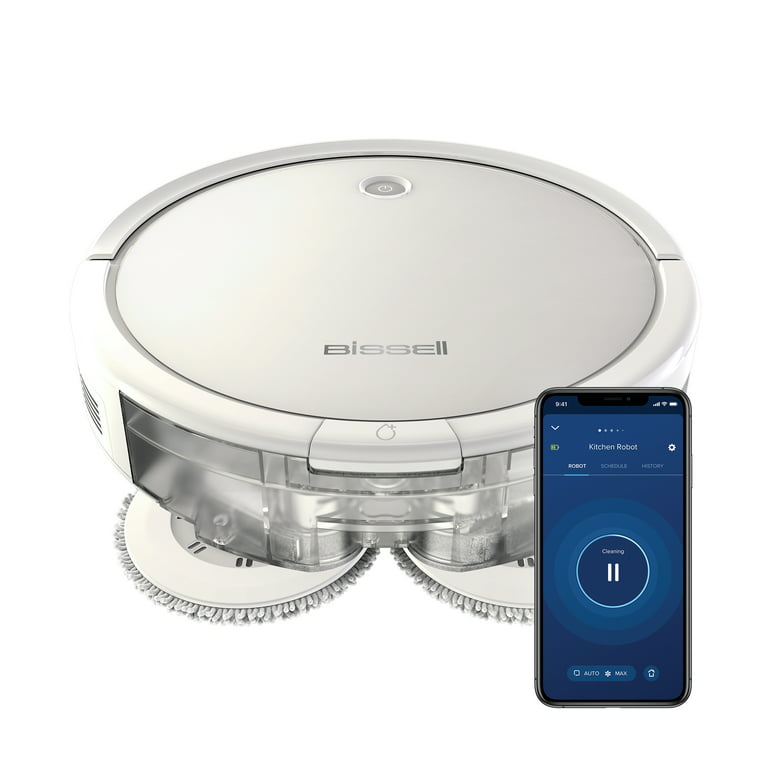
Charging Dock Problems
Is your Bissell robot vacuum beeping while charging? This issue may stem from charging dock problems. In this section, we will explore potential issues with the charging dock that could cause this beeping sound.
Connection Issues
One common issue is connection problems. Ensure the vacuum connects properly to the dock. Check if the connectors on both the vacuum and dock are clean. Dust or debris can block the connection, causing the beeping sound.
Steps to resolve connection issues:
- Unplug the charging dock from the wall socket.
- Clean the connectors on the dock and vacuum.
- Re-plug the dock and place the vacuum on it.
If the beeping continues, the issue might be something else.
Dock Placement
Another cause could be improper dock placement. The charging dock should be placed on a flat surface. Uneven surfaces can prevent the vacuum from docking correctly.
Proper dock placement tips:
- Place the dock against a wall to prevent movement.
- Ensure no objects are around the dock within a 3-foot radius.
- Keep the dock away from direct sunlight or heat sources.
Proper placement can ensure the vacuum docks correctly and charges without issues.
Software Glitches
Your Bissell robot vacuum beeping while charging might be due to software glitches. Software issues can interfere with normal operations. These glitches can affect charging too. Below are some common solutions to fix software glitches.
Firmware Updates
Firmware updates are crucial for your vacuum. They often fix bugs and improve performance. Follow these steps to update your firmware:
- Ensure your vacuum is connected to Wi-Fi.
- Open the Bissell app on your phone.
- Navigate to the settings menu.
- Select the firmware update option.
- Follow the on-screen instructions.
Updating firmware can resolve many issues. Make sure you keep your device updated.
Resetting the vacuum can also fix software glitches. A reset clears temporary bugs and restores default settings. Follow these steps to reset your Bissell robot vacuum:
- Turn off the vacuum.
- Press and hold the reset button for 10 seconds.
- Wait for the vacuum to restart.
- Check if the beeping issue is resolved.
Resetting can often solve many software-related problems. It’s a simple and quick fix.
Sensor Malfunctions
Your Bissell Robot Vacuum may beep while charging. This can be due to sensor malfunctions. Understanding these malfunctions can help you fix the problem. Below, we explore two main sensor issues: Dirt Sensor and Obstacle Sensor.
Dirt Sensor
The dirt sensor detects dirt and debris. If this sensor malfunctions, the vacuum may beep. This usually happens if the sensor is dirty.
- Clean the sensor with a soft cloth.
- Check for any stuck debris.
A clean sensor ensures accurate dirt detection. This can stop the beeping.
Obstacle Sensor
The obstacle sensor helps the vacuum avoid objects. A malfunction here can also cause beeping.
- Inspect the sensor area for obstructions.
- Gently clean the sensor with a soft cloth.
Sometimes, the sensor may be damaged. In this case, you might need professional help. Keeping the sensor clean can prevent many issues.
Power Supply Concerns
If your Bissell robot vacuum beeps while charging, the power supply might be the issue. Understanding power supply concerns can solve this problem quickly.
Power Adapter
The power adapter is crucial for charging your Bissell robot vacuum. Ensure it is the correct one for your model. Using the wrong adapter can cause beeping sounds. Inspect the power adapter for any visible damage. A damaged adapter can disrupt the charging process. Check if the adapter is plugged in securely.
Outlet Issues
An unreliable power outlet can cause charging issues. Test the outlet with another device to ensure it works. If the outlet is faulty, the vacuum will beep. Try using a different outlet to charge your vacuum. Ensure the new outlet is in good condition.
| Issue | Solution |
|---|---|
| Wrong Power Adapter | Use the correct adapter for your model |
| Damaged Adapter | Inspect and replace if necessary |
| Faulty Outlet | Test with another device |
| Loose Connection | Ensure the plug is secure |
- Check the power adapter for damage.
- Ensure the adapter is secure.
- Test the outlet with another device.
- Try a different outlet if needed.
- Unplug the adapter from the outlet.
- Inspect the adapter for any damage.
- Plug the adapter back in securely.
- Test the outlet with another device.
- Use a different outlet if necessary.
Troubleshooting Steps
Experiencing issues with your Bissell Robot Vacuum beeping while charging can be frustrating. To help you resolve this, we’ve compiled troubleshooting steps. Follow these steps to identify and fix the problem.
Checking Connections
First, ensure all connections are secure.
- Check the power cord for any damage.
- Verify the power adapter is plugged into an outlet.
- Make sure the charging port on the vacuum is clean.
Sometimes, debris can block the charging port. Use a soft cloth to clean it. A clean port ensures proper connection.
Inspecting The Dock
Next, inspect the charging dock.
- Ensure the dock is on a flat surface.
- Check for obstructions around the dock.
- Verify the dock’s power light is on.
If the light is off, there might be an issue with the power supply. Make sure the dock is receiving power.
| Issue | Solution |
|---|---|
| Damaged Power Cord | Replace the power cord. |
| Dirty Charging Port | Clean with a soft cloth. |
| Obstruction Near Dock | Clear any obstacles. |
| Dock Not Receiving Power | Check the power outlet. |
Follow these steps to troubleshoot your Bissell Robot Vacuum. This ensures it charges properly without beeping.
Resetting The Vacuum
If your Bissell Robot Vacuum is beeping while charging, a reset might help. Resetting can resolve minor software issues. There are two main ways to reset your vacuum: a Soft Reset and a Factory Reset. Each method serves a different purpose. Below, we explain each step in detail.
Soft Reset
A Soft Reset is the simplest way to restart your vacuum. This method won’t erase your settings. It’s useful for minor glitches. Follow these steps:
- Turn off your Bissell Robot Vacuum.
- Unplug the charging dock from the power source.
- Wait for 30 seconds.
- Plug the charging dock back in.
- Turn your vacuum back on.
Your vacuum should now be reset. Check if the beeping has stopped. If not, consider a Factory Reset.
Factory Reset
A Factory Reset will erase all settings and return the vacuum to its original state. Use this method if a soft reset didn’t work. Follow these steps:
- Ensure your vacuum is turned on.
- Press and hold the Power Button for 10 seconds.
- Wait until the vacuum beeps and the lights flash.
- Release the power button.
Your Bissell Robot Vacuum will now be reset to factory settings. You will need to reconfigure your settings. This should resolve any persistent issues.

Cleaning Sensors
Your Bissell robot vacuum may beep while charging. This can be due to dirty sensors. Sensors are vital for navigation and charging. Keeping them clean ensures proper functioning.
Tools Required
- Soft cloth
- Cotton swabs
- Isopropyl alcohol
- Small brush
Cleaning Process
- Turn off the robot vacuum.
- Use a soft cloth to wipe the sensors.
- Dampen a cotton swab with isopropyl alcohol.
- Gently clean the sensors with the swab.
- Use a small brush for hard-to-reach areas.
- Let the sensors dry completely before turning on.
| Step | Action | Tool |
|---|---|---|
| 1 | Turn off the robot vacuum | None |
| 2 | Wipe sensors | Soft cloth |
| 3 | Dampen cotton swab | Isopropyl alcohol |
| 4 | Clean sensors | Cotton swab |
| 5 | Brush hard-to-reach areas | Small brush |
| 6 | Let sensors dry | None |
Updating Firmware
Is your Bissell robot vacuum beeping while charging? One possible reason could be an outdated firmware. Firmware updates can fix bugs, improve performance, and add new features. Updating the firmware can often resolve beeping issues.
Checking For Updates
First, you need to check if there’s a firmware update available. Follow these steps:
- Open the Bissell app on your smartphone.
- Navigate to the Settings menu.
- Select Device Info or Firmware.
- Look for available updates.
If an update is available, you will see a notification. Ensure your vacuum is connected to Wi-Fi.
Installation Guide
Once you’ve confirmed that an update is available, follow these steps to install it:
- Ensure your vacuum has at least 50% battery.
- Keep the vacuum on its charging dock.
- In the Bissell app, click Update Firmware.
- Wait for the update to download and install.
Do not turn off the vacuum during the update process. The vacuum may restart several times.
If the beeping persists after the update, you may need to contact customer support for further assistance.
When To Contact Support
If your Bissell robot vacuum is beeping while charging, it’s essential to understand when to contact support. Beeping sounds can indicate various issues, some of which may require professional help. This section provides guidance on identifying persistent problems and understanding your warranty coverage.
Persistent Issues
Occasional beeping might be normal. But, if the beeping persists, it signals a deeper issue. Here are some common problems that require contacting support:
- Continuous Beeping: If the vacuum beeps non-stop during charging, it might need repair.
- Error Codes: Beeping accompanied by error codes often means a technical glitch.
- Charging Problems: If the vacuum doesn’t charge despite being plugged in, seek help.
- Unusual Noises: Any strange sounds besides beeping indicate a malfunction.
Warranty Information
Before contacting support, check your vacuum’s warranty status. Knowing your warranty details helps in getting free repairs or replacements.
| Warranty Coverage | Details |
|---|---|
| Duration | Check the purchase date. Most warranties last 1-2 years. |
| Conditions | Ensure the vacuum was used as per the user manual. |
| Proof of Purchase | Keep your receipt or order confirmation for verification. |
Contact Bissell support with your warranty information handy. This helps in quick resolution of the issue.
Preventative Maintenance
Maintaining your Bissell robot vacuum is essential. It helps in preventing unexpected beeping during charging. Regular cleaning and proper storage are key to keeping your vacuum in good condition.
Regular Cleaning
Regular cleaning ensures your Bissell robot vacuum works efficiently. Follow these steps:
- Empty the Dustbin: Empty the dustbin after every cleaning cycle.
- Clean the Filters: Clean the filters weekly. Replace them every few months.
- Check the Brushes: Remove hair and debris from the brushes. This prevents clogs.
- Wipe Sensors: Use a dry cloth to wipe the sensors. This helps the robot navigate better.
Proper Storage
Proper storage can extend the life of your Bissell robot vacuum. Here’s how to store it correctly:
- Charge Regularly: Keep the vacuum on its charging dock. This ensures it’s always ready to clean.
- Safe Environment: Store the vacuum in a dry, cool place. Avoid exposing it to extreme temperatures.
- Organized Cords: Keep the charging cords untangled. This prevents damage to the cables.
By following these tips, you can prevent your Bissell robot vacuum from beeping while charging. Regular maintenance is simple and keeps your vacuum running smoothly.
User Manual Insights
Understanding why your Bissell Robot Vacuum beeps while charging is crucial. The user manual provides valuable information to decode these beeps. Let’s explore some key insights from the user manual to help you troubleshoot this issue.
Beep Codes
The user manual includes a section on beep codes. These codes help identify specific issues with your vacuum. Each beep pattern represents a different problem. Here are some common beep codes:
- 1 Beep: Battery needs charging.
- 2 Beeps: Charging error.
- 3 Beeps: Motor malfunction.
- 4 Beeps: Sensor issue.
Troubleshooting Section
The troubleshooting section offers solutions for common problems. It is a helpful guide to fix your vacuum. Follow these steps to resolve the beeping issue:
- Check the charging contacts: Ensure they are clean and aligned.
- Inspect the power adapter: Make sure it is functioning correctly.
- Reset the vacuum: Turn it off and on again.
- Consult the user manual: Refer to the error code section for specific solutions.
For a quick reference, here is a table summarizing the beep codes and corresponding solutions:
| Beep Code | Issue | Solution |
|---|---|---|
| 1 Beep | Battery needs charging | Charge the battery |
| 2 Beeps | Charging error | Check the charging contacts |
| 3 Beeps | Motor malfunction | Inspect the motor |
| 4 Beeps | Sensor issue | Clean the sensors |
Always refer to the user manual for detailed instructions. This will help you maintain your Bissell Robot Vacuum in good working condition.
Frequently Asked Questions
Why Does My Bissell Robot Keep Beeping?
Your Bissell robot keeps beeping due to low battery, stuck brushes, or an obstruction. Check and resolve these issues.
Why Is My Robot Vacuum Beeping?
Your robot vacuum beeps due to errors or alerts. Check for obstacles, low battery, or maintenance needs. Consult the manual for specific codes.
How To Know If A Bissell Robot Vacuum Is Charging?
Check the LED indicator on the Bissell robot vacuum. A solid light means it’s charging. Ensure the vacuum is properly docked.
Why Is My Bissell Vacuum Not Charging?
Your Bissell vacuum may not charge due to a faulty power cord, damaged battery, or blocked charging port. Check connections and clean ports. Replace the battery if necessary.
Why Is My Bissell Vacuum Beeping?
Your Bissell vacuum may beep due to low battery or charging issues. Check the manual for specific beep codes.
Conclusion
Understanding why your Bissell robot vacuum beeps while charging is crucial. It can signal various issues needing attention. Regular maintenance ensures optimal performance. Always refer to the user manual for troubleshooting tips. Keeping your vacuum in top shape guarantees a clean home.
Don’t ignore the beeps; they are there to help.